
Instructions for installing the vGocms interface from the admin panel
Note: The Next.js interface is deployed on the sameVPSas the administration servervGo. All management operations are performed directly through the "vGocms Theme Store" interface.
Instructions for working with the theme
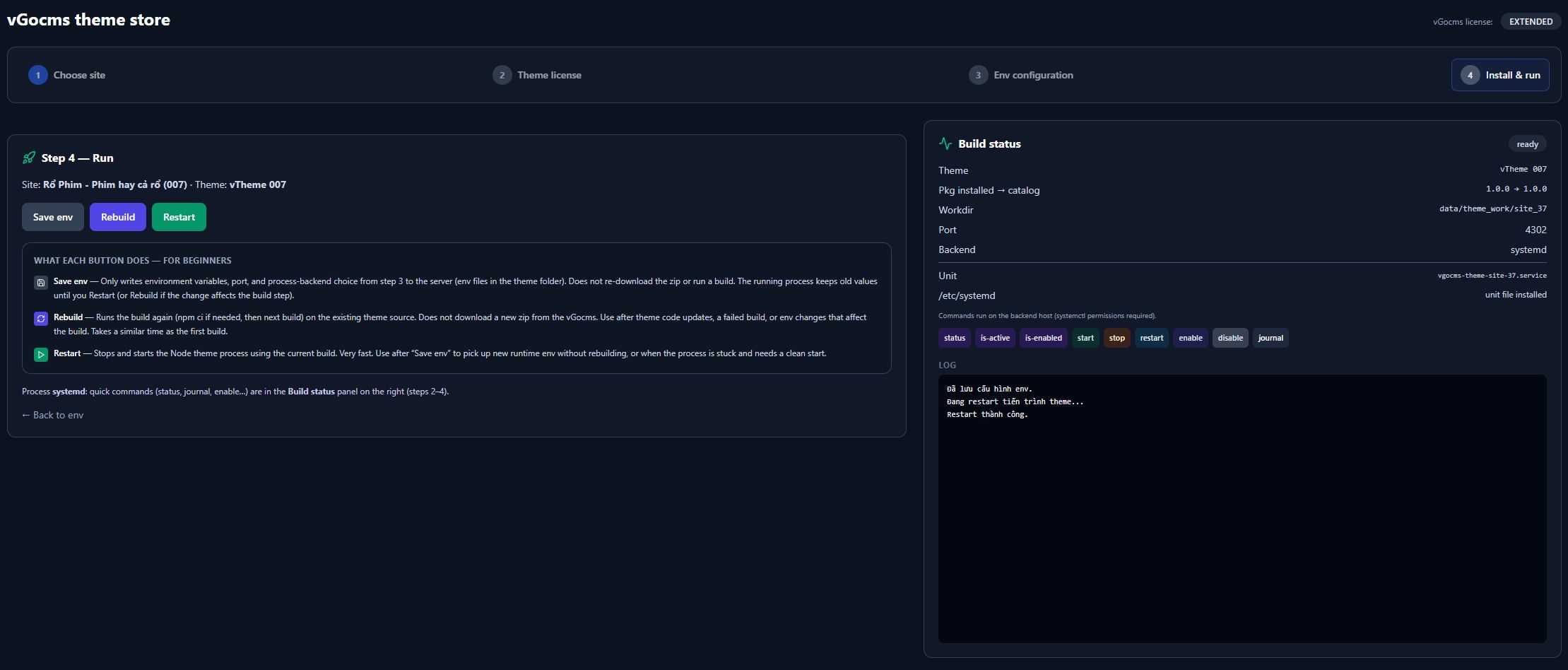
1. Runtime System Parameters
Based on the Build status table, the system is running with the configuration:
- Environment:Node.js (Next.js).
- Workdir:data/theme_work/site_37 (Directory containing the source code on the VPS).
- Port:4302 (Internal port that Next.js is listening on).
- Process Backend:systemd (Ubuntu process manager).
- Systemd Unit:vgocms-theme-site-37.service (Name of the service managing this theme).
2. Theme Control Operations (Left Panel)
These buttons interact directly with the source code and lifecycle of the Next.js application.
- [Save env]:
- Action:Only overwrite settings from Step 3 (Environment variables, port, process backend) to the configuration file (e.g., .env in the theme directory).
- Nature:Pure file writing. Does not reload the source code (zip), does not rerun the build process.
- Note:After saving, the old process will still run with the old configuration. You must press Restart (if it is a runtime env) or Rebuild (if it is a build-time env) to apply.
- [Rebuild]:
- Action:Rerun the Next.js build process on existing source code.
- Nature:Executes npm ci (to update/reinstall node_modules if needed) → executes npm run build (or next build). Does not reload the zip file from the origin server.
- When to use:After making code changes directly on the VPS, applying a patch update, or changing environment variables that require a rebuild (e.g., variables NEXT_PUBLIC_...).
- [Restart]:
- Action:Stop and restart the current Node.js process.
- Nature:Send a restart signal to the systemd service. Very fast because it doesn't require a rebuild.
- When to use:Apply runtime .env after clicking Save env, or clear memory when the process is hung (memory leak, stuck).
3. Systemd Process Management (Table on the right)
These buttons directly execute Ubuntu systemctl and journalctl commands for the vgocms-theme-site-37.service unit. Requires root/sudo privileges on the host.
- [status] : Run systemctl status <unit>. Returns the detailed status of the service (running, error, crash...).
- [is-active] : Run systemctl is-active <unit>. Returns active or inactive.
- [is-enabled] : Run systemctl is-enabled <unit>. Checks if the service is automatically started when the VPS reboots.
- [start] / [stop] / [restart] : Basic commands to turn on, off, and restart the service via systemd.
- [enable] : Run systemctl enable <unit>. Set the configuration to automatically run the service when the VPS boots/reboots.
- [disable] : Run systemctl disable <unit>. Turn off automatic run configuration.
- [journal] : Run journalctl -u <unit>. Output the specific system logs of this Next.js process (console.log, error log, crash trace).
4. LOG Table (Bottom right corner)
Displays real-time output of running tasks.
- Example in the image: Standard flow when saving configuration -> system reports restarting -> successfully started. Any errors (if any) during the processing of the underlying bash/python script will be printed here.